![Cover Image for How to Delete Git Branches: Local & Remote (With Commands) [2026]](/blog/_next/image?url=https%3A%2F%2Fwp.keploy.io%2Fwp-content%2Fuploads%2F2024%2F11%2Fb5089871-5788-43a0-bbb5-a53216f915be.png&w=1200&q=75)






git branch -d branch-name (safe) or git branch -D branch-name (force). To delete a remote branch, use git push origin --delete branch-name. Always ensure the branch has been merged before deleting, and use git fetch --prune to clean up stale remote-tracking references.TLDR;
Deleting a Local Branch in GitTo delete a local branch, use one of these commands:
Safe deletion:
git branch -d <branchName>Force deletion:
git branch -D <branchName>Deleting a Remote Branch in Git
To delete a branch from a remote repository (like GitHub or GitLab):
Local Branch vs. Remote Branch in Git
Understanding the difference between local and remote branches is crucial for working with Git effectively.
Local Branch
-
Location: Exists only on your machine.
-
Purpose: For individual development; changes here won’t affect other developers. It’s where you do your day-to-day development and changes.
-
You can create, delete, and modify it without affecting other developers.
-
Command to List Local Branches:
git branch
Remote Branch
-
Location: Exists on a remote server (e.g., GitHub, GitLab).
-
Purpose: For collaboration; changes here are accessible to the team, allowing multiple people to work on the same branch.
-
You need to fetch or pull changes from the remote to sync it with your local branch.
-
Command to List Remote Branches:
git branch -r
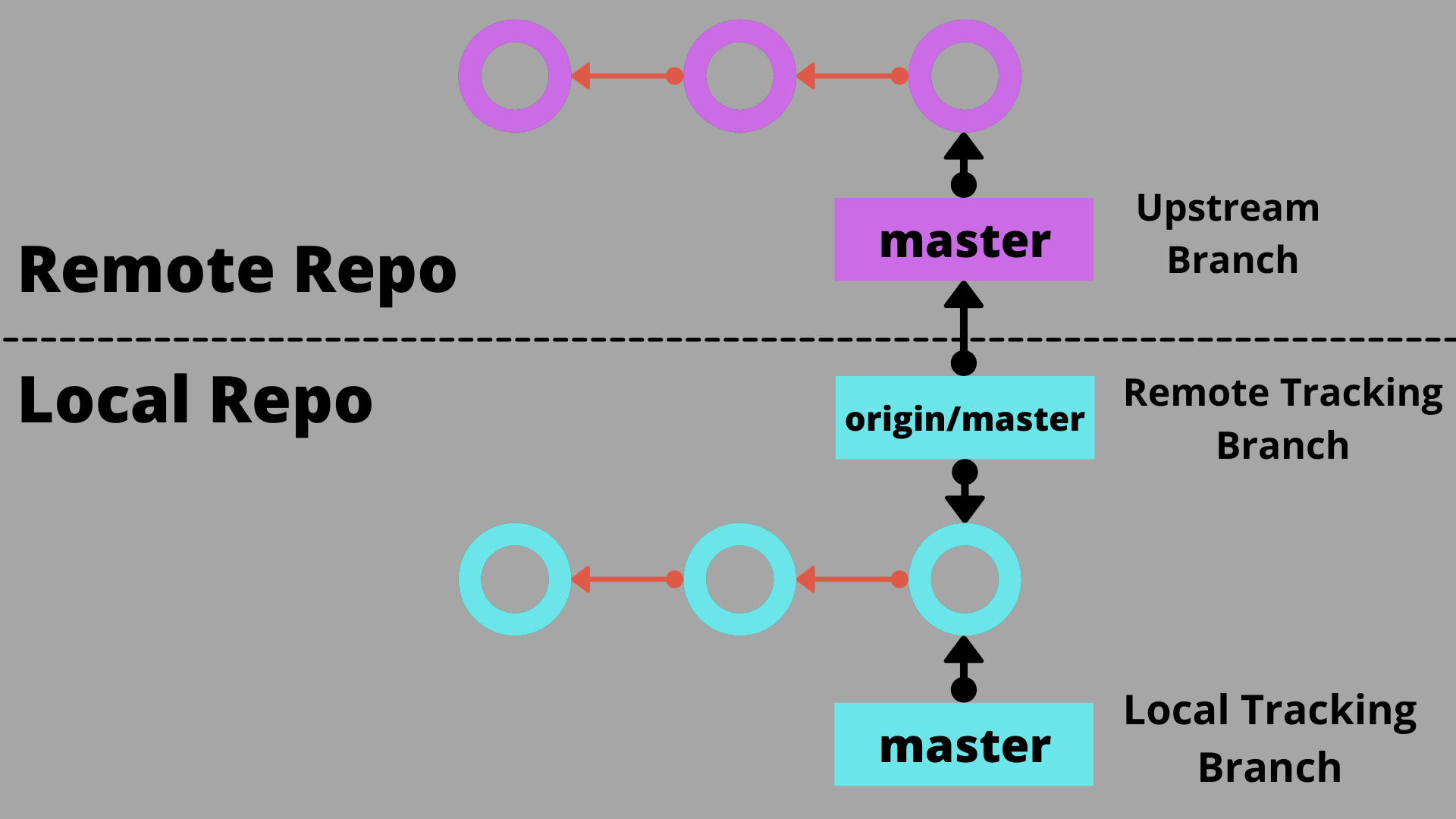
Key Differences Between Local and Remote Branches
| Feature | Local Branch | Remote Branch |
|---|---|---|
| Location | Exists on your machine only | Exists on a remote server |
| Collaboration | Used for individual work | Used for collaboration with the team |
| Creation/Deletion | Only affects your local repository | Affects everyone who accesses the remote |
| Syncing | You can work offline | Requires fetching or pulling updates |
Understanding with an example
Let’s walk through a practical example.
Step 1: Cloning the Repository
Let us clone a basic repo from GitHub
Navigate to the cloned directory and check the available branches:
Currently, we have only the main branch in the sample repository.
Step 2: Working with Local Branches
Let’s create a local branch named try
Deleting the Feature Branch
Now, try to delete the try branch using the -d option:
You’ll encounter an error since you cannot delete the currently checked-out branch.
Switching to the Main Branch
Switch to the main branch to delete try:
Now, delete the try branch again:
Deleting a Local Branch With the -D Option
Let’s recreate the try branch and make some changes:
Attempting to delete the branch with -d again, it will show an error because it contains unmerged changes:
Force Deletion
To force delete the branch, use:
Understanding Local Branch Deletion
It’s important to note that using -d or -D will only remove the local branch; any corresponding remote branch will remain unaffected.
Deleting a Remote Branch
To delete a remote branch, use one of the following commands:
For Git versions 1.7.0 and later:
Creating and Pushing a Remote Branch
Let’s create a tryrem branch, make some changes, and push it to the remote repository:
Deleting the Remote Branch
To remove the remote tryrem branch:
After executing this command, the remote branch is deleted, but your local branch will still exist.
Conclusion
If you’re exploring AI-powered tools for improving your Git workflow, check out our comparison of GitHub Copilot vs ChatGPT for unit testing.
In this article, we explored how to delete local and remote branches in Git. Here’s a quick summary:
-
Delete a local branch:
git branch -d <branchName>orgit branch -D <branchName>for force deletion. -
Delete a remote branch:
git push origin --delete <branchName>
FAQ
What command do I use to delete a local branch in Git?
-
To delete a local branch safely, use:
To force delete a local branch, use:
How do I delete a remote branch in Git?
-
To delete a remote branch, use one of the following commands:
or
What is the difference between a local branch and a remote branch?
-
Local Branch: Exists on your machine only; used for individual development without affecting others. Commands to manage local branches include
git branchto list them. -
Remote Branch: Exists on a remote server (e.g., GitHub or GitLab); used for collaboration. Changes to remote branches affect all collaborators. Use
git branch -rto list remote branches.
Can I delete a branch that I’m currently on?
- No, you cannot delete the branch you are currently checked out on. You must switch to another branch (e.g.,
main) before deleting the desired branch.
What happens if I try to delete a branch that has unmerged changes?
- If you attempt to delete a local branch with unmerged changes using the
-doption, you will receive an error. To forcefully delete the branch, you can use the-Doption.
What are the consequences of deleting a local branch?
- Deleting a local branch with
-dor-Donly affects your local repository. The corresponding remote branch will remain intact unless explicitly deleted.
How can I verify if a branch has been deleted successfully?
-
To check if a branch has been deleted:
-
For local branches, use:
-
For remote branches, use:
What is the process for creating and pushing a new branch to a remote repository?
-
To create and push a new branch to a remote repository: