Recording Filters
Keploy lets you configure filters when starting a recording on any deployment. Filters give you precise control over which requests get captured. You can limit recording to specific paths, methods, hosts, or headers, or explicitly exclude traffic you do not need.
Filters are optional. If none are configured, Keploy records all traffic on the selected pods.
Where to Configure Filters
Filters are configured in Step 2 (Record config) of the Start Recording flow.
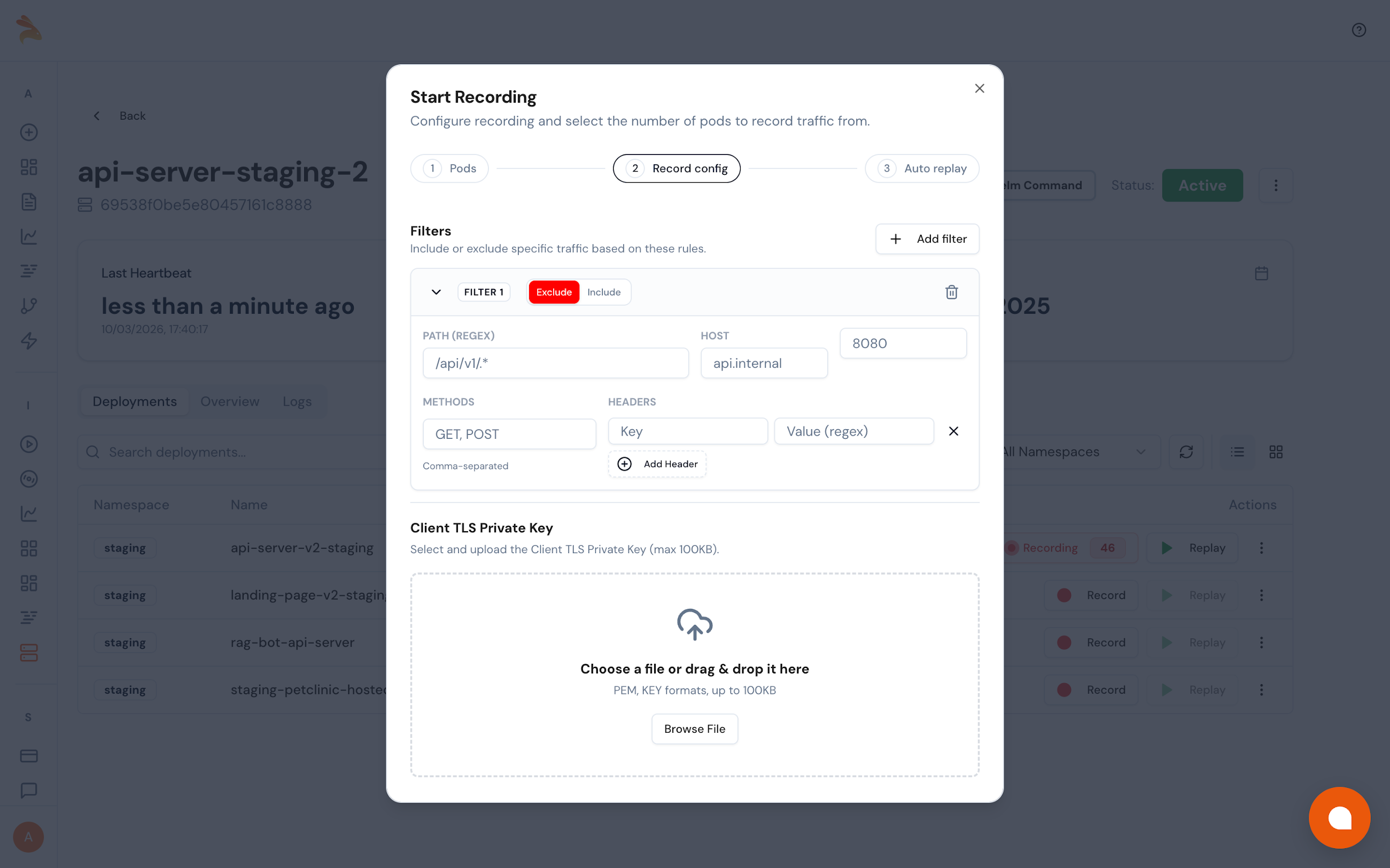
To get there:
- Go to Clusters and open your connected cluster.
- In the Deployments tab, click Record on the deployment you want to capture traffic from.
- Select the pods you want to record, then click Next.
- On the Record config screen, click + Add filter.
Include and Exclude
Each filter runs in one of two modes:
- Exclude: Requests that match this filter will be dropped and not recorded.
- Include: Only requests that match this filter will be recorded. Everything else is ignored.
Note: Use Exclude when you want to record most traffic but remove noise like health checks, probes, or irrelevant endpoints. Use Include when you only want to record a specific subset of traffic.
Filter Fields
Each filter supports the following fields. You can fill one or more. Only the fields you populate are evaluated.
-
Path (Regex) Matches the request path using a regular expression. Example:
/api/v1/.*This captures all paths under/api/v1/. -
Host Matches the target host. Example:
api.internal -
Port Matches the port number. Example:
8080 -
Methods Comma-separated list of HTTP methods. Example:
GET,POST -
Headers Matches a specific request header. Enter the header key and a regex as the value. Example: key =
x-record, value =true.
You can add multiple header conditions using + Add Header.
How Filter Logic Works
All fields within a single filter are combined with AND logic. A request must satisfy every field you have filled in for the filter to match.
For example, if you set Path to /api/v1/.* and Methods to GET, POST, only GET or POST requests to paths under /api/v1/ will match. A GET to /health would not.
Note: If you add multiple filters, each filter is evaluated independently. A request is recorded if it matches any one of the configured filters.
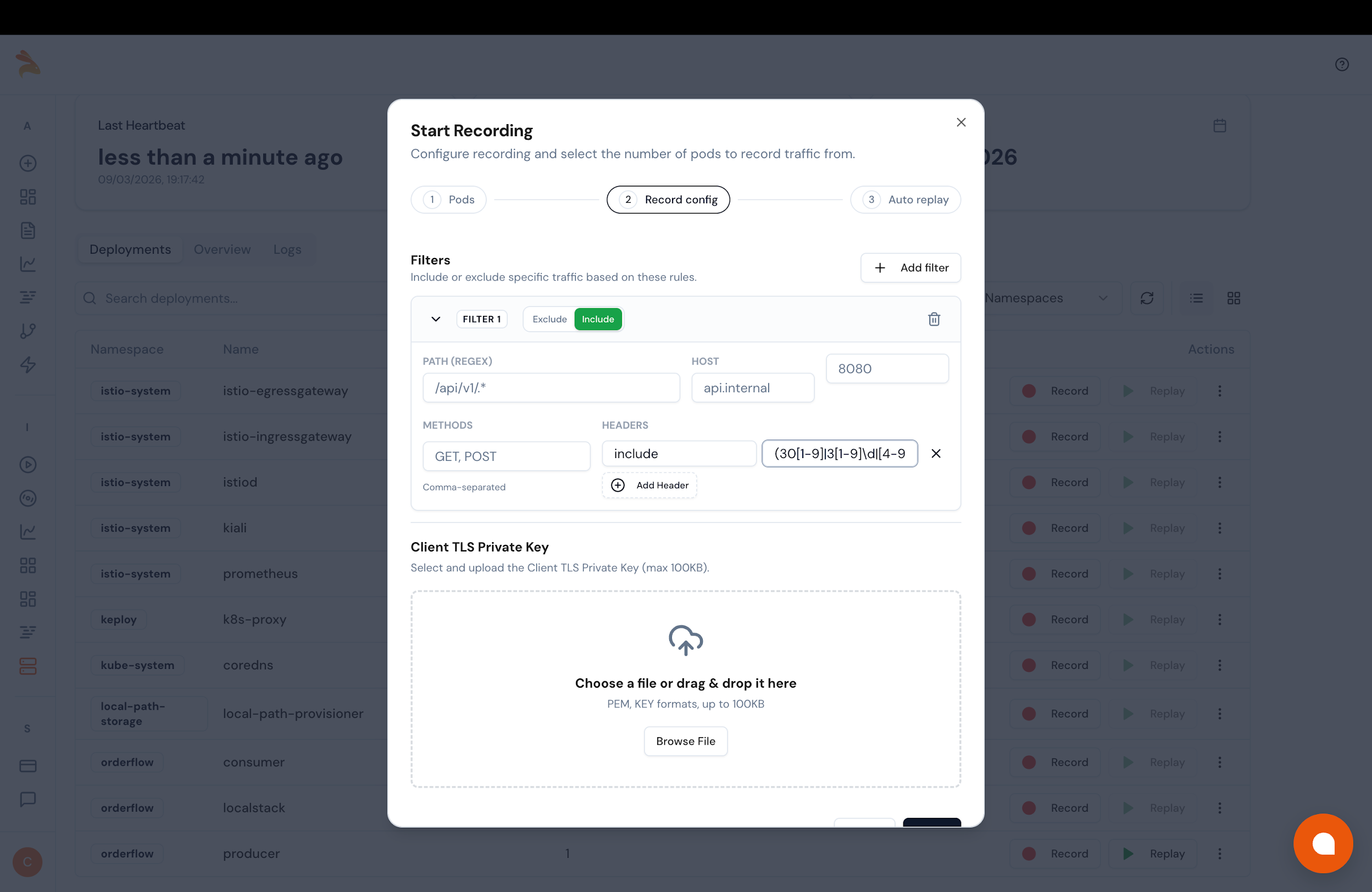
Example: Include Filter with Regex Header
This filter captures only requests where a specific header value matches a regular expression pattern. The filter is set to Include mode, meaning all other traffic is ignored.
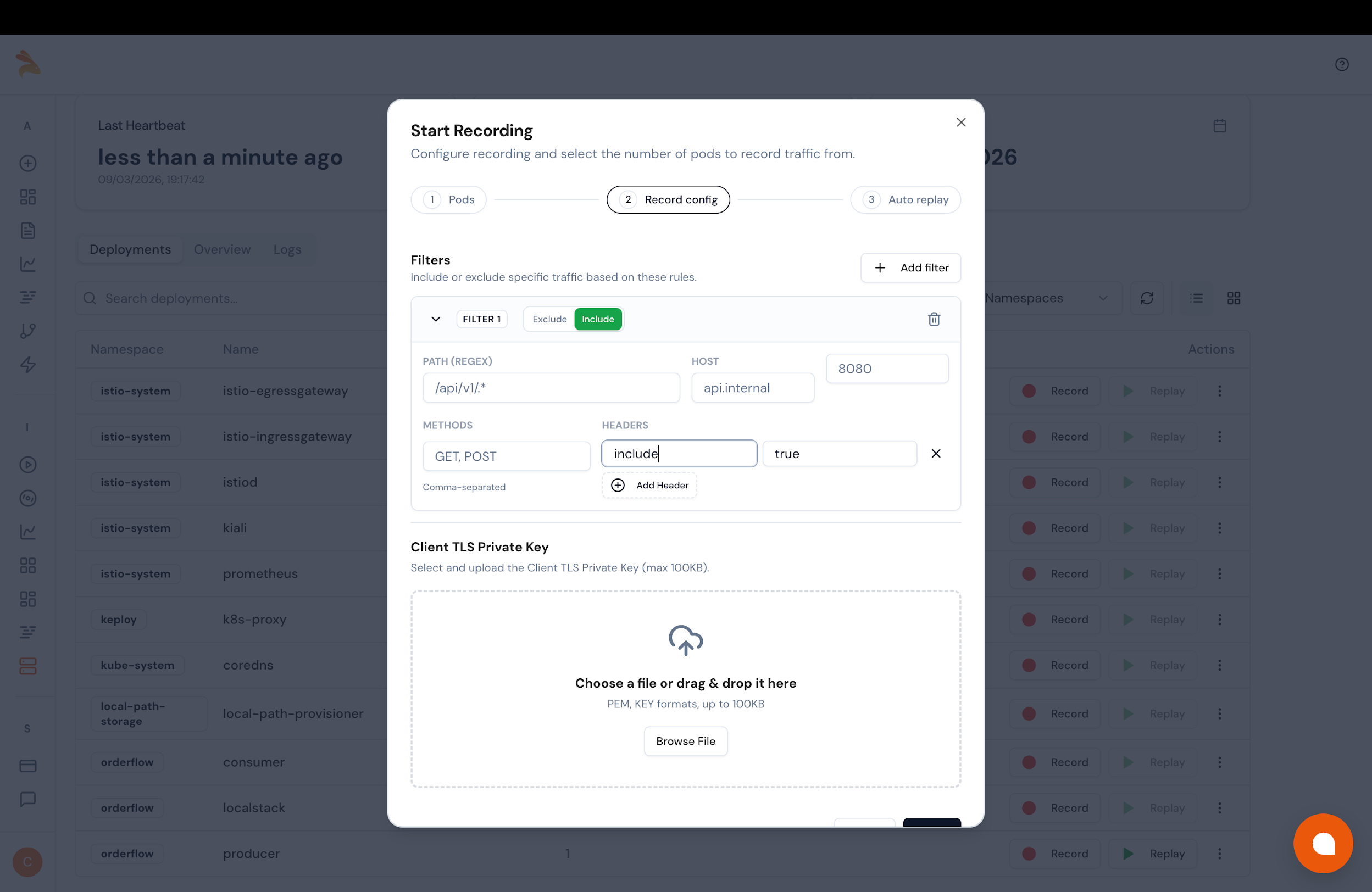
Example: Include Filter with Exact Header
This example shows an Include filter matching on a header key with the exact value true. This is the simplest form of header-based filtering. Only requests carrying that header with that value will be recorded.
Client TLS Private Key
If your services communicate over mutual TLS (mTLS), you can upload the Client TLS Private Key on the same screen before proceeding. Accepted formats are PEM and KEY, with a maximum size of 100KB.
If your services do not use mTLS, leave this section empty and proceed.
After Filters Are Applied
Once you click Next, Keploy proceeds to Step 3 (Auto replay config) to complete the recording setup. After a recording starts, there is no in-UI view of which specific requests are being captured. Keploy applies your filters in the background and records all matching traffic into test cases automatically.