UI capture ingest keys: create, rotate and revoke them, one app per environment
The capture SDK sends what it records with an ingest key, the apiKey you pass to KeployCapture.init(). This page says what an ingest key can do, how to create, rotate and revoke one in the dashboard or over the API, who may, and why each environment you record should have an app of its own.
What an ingest key can do
An ingest key is issued for one Keploy app. It can post recordings into that app and do nothing else: no reads, and no other API. That is what makes it safe to ship in your page's JavaScript, where every visitor can read it.
- It works only on the SDK's two routes:
POST /ui/v1/ingest, where the SDK posts its batches, andPOST /ui/v1/sessions/<session id>/complete, which ends a visit at once. The SDK sends it as theX-API-Keyheader. A script or a CI job may sendAuthorization: Bearer kep_…instead, but from a page onlyX-API-Keypasses the routes' CORS rules. - A live personal access token, or any other live Keploy key that is not an ingest key, is refused there with
403and "this API key is not a UI ingest key", and an ingest key is refused everywhere else. Never put another kind of Keploy credential inapiKey. - A key records into the app it was created for, whatever page sends it.
- A key belongs to its app, not to the person who created it: it keeps working when that person leaves your organization, and stops working when the app is deleted.
Create one
In the dashboard
- Open UI Testing → UI Flows and select your app in the header. An app with no flows and no test runs shows the setup card on its own; otherwise the card is under the Setup tab.
- Under 1. Create an ingest key, optionally type a name of up to 100 characters, such as
production web. Without one, the key is namedweband today's date, such asweb 2026-11-20. - Click Create ingest key. If you signed in more than 15 minutes ago, Keploy first asks you to Confirm it's you: click Sign in again and sign in.
- Copy the key. Copy this key now — it is shown only once.
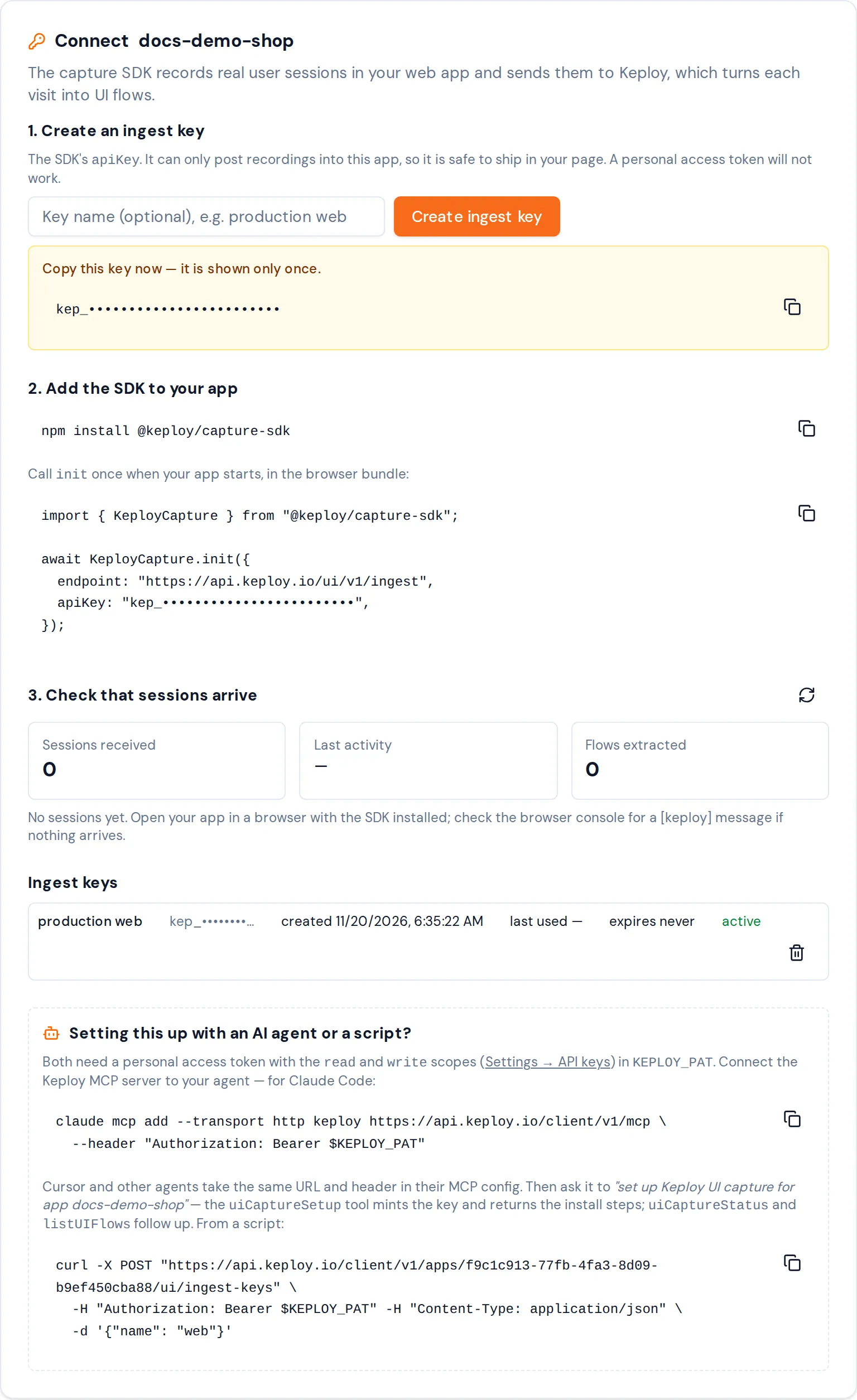
A key created in the dashboard does not expire: its row under Ingest keys says expires never. To create one that expires, use the API. The dashboard quickstart puts a new key into a sample shop.
With the REST API or MCP
curl -X POST https://api.keploy.io/client/v1/apps/<appId>/ui/ingest-keys \
  -H "Authorization: Bearer kep_YOUR_API_KEY" \
  -H "Content-Type: application/json" \
  -d '{"name": "production web", "ttlDays": 365}'
nameis optional, at most 100 bytes once spaces at either end are trimmed. Without one, the key is namedui-captureand today's date in UTC.Web UI Session, in any case, is reserved and refused.ttlDaysis optional: the key's lifetime, from 1 to 365 days. Without it, the key does not expire.- The response's
datacarries the key asapiKey, theendpointthe SDK posts to, the SDK's install command and aninitsnippet with the key in it, and the next steps.apiKeyis in this response only, so store it before you go on. - Every call creates a new key. A stored key's secret cannot be returned again, so list and revoke the keys you no longer use.
- A
409whoseerror.codeisUI_INGEST_KEY_ACCOUNT_CLAIMEDmeans the key was taken back because the app's service account was being removed at the same moment: send the request again.
An AI agent does the same with the MCP tool uiCaptureSetup. The Overview shows how to connect one.
A key's expiry is checked on every request the SDK makes, so a key stops working the moment it expires. A page that sends an expired key is refused with 401, and its capture ends with KUI_E_INGEST_KEY_REJECTED.
One app per environment
Keploy builds an app's journeys from every session the app receives: each journey's share is a share of all the app's sessions in the last 30 days. Visits from a staging site, a preview deploy or a CI job that record into your production app count in those shares as much as real visitors do.
So give each environment you record an app of its own, such as storefront-web for production and storefront-web-staging for staging, and give each environment's build the ingest key of its app. Pick each app's name with care: an app's name cannot be changed once it is created.
Rotate a key
An app can have several active keys at once, so you can replace one without a gap in recording:
- Create a new key for the same app.
- Deploy your app with the new key.
- Wait until the old key is no longer used. Tabs that loaded your page before the deploy still send the old key until they reload. The key list shows each key's last use (last used in the dashboard,
lastUsedAtover the API), which Keploy updates at most once every 5 minutes. - Revoke the old key.
Each key in the list also shows its prefix (keyPrefix), the start of the key: it tells you which key a page ships.
Revoke a key
In the dashboard, open the setup card: under the Setup tab once the app has flows or test runs. Under Ingest keys, click the trash icon next to the key. The row asks you to confirm: Pages using it stop recording. Click Revoke.

Over the API, delete it by its id from the key list:
curl https://api.keploy.io/client/v1/apps/<appId>/ui/ingest-keys \
  -H "Authorization: Bearer kep_YOUR_API_KEY"

curl -X DELETE https://api.keploy.io/client/v1/apps/<appId>/ui/ingest-keys/<keyId> \
  -H "Authorization: Bearer kep_YOUR_API_KEY"
The answer's data is {"id": "<keyId>", "revoked": true}. An id that is not one of this app's ingest keys is answered 404. The list never returns a key's secret, and keeps revoked keys, marked revoked. An agent uses the MCP tools listUIIngestKeys and revokeUIIngestKey.
Pages that use a revoked key are refused within about 30 seconds: each Keploy server keeps its answer for a key for up to 30 seconds. Their capture then ends with KUI_E_INGEST_KEY_REJECTED. Deleting the app deletes its keys too.
Who can manage keys
| To | Permission on the app | API key scope, over the REST API or MCP |
|---|---|---|
| Create a key | testgen:run | write |
| Revoke a key | testgen:run | write |
| List an app's keys | app:view | read |
In the dashboard, creating or revoking a key also needs a sign-in less than 15 minutes old: past that, Keploy asks you to Confirm it's you first.
Organization admins and the app's App Admins have testgen:run. A plain member does not, unless an admin grants it.
No service-account key can manage ingest keys. Listing them is refused to every service account, and creating or revoking one needs testgen:run, which none of the roles a service account can hold grants (ATG_RUNNER, ITG_RUNNER, UI_READER, MOCK_READER). Use your own API key, or the dashboard.