UI Testing quickstart for AI agents: set up capture from Claude Code, Cursor or Codex
In this quickstart your AI coding agent sets up Keploy UI capture for you. You connect it to the Keploy MCP server and ask it to set up capture; the agent mints an ingest key, adds the capture SDK to your frontend, and reads the UI flows your first visits make. Apart from creating a token, if you connect with one, you never open the dashboard. It takes about 10 minutes.
UI Testing is in beta. Recording visits and reading them as flows and journeys works today. Replaying journeys as Playwright tests is in beta too, and its runner is not in a release build yet, so this quickstart stops at the flows. See what works today.
Before you begin
- A Keploy account. Sign in at app.keploy.io.
- An AI coding agent that can use MCP servers over HTTP, such as Claude Code, Cursor, Codex, Windsurf or Antigravity.
- Your web app's repository, open in the agent. To try it on a sample first, use the React sample shop:
git clone https://github.com/keploy/samples-typescript, then opensamples-typescript/ui-capture-react-shop. - Permission to run test generation on the app (
testgen:run), and a credential with thewritescope: minting an ingest key needs both, and creating an app needswrite.
1. Connect your agent to Keploy
The Keploy MCP server is at https://api.keploy.io/client/v1/mcp. Connect your agent to it one of three ways.
Sign in with OAuth. Add the server with no key. For Claude Code:
claude mcp add --transport http keploy https://api.keploy.io/client/v1/mcp
The server answers a request with no key with 401 and a pointer to its OAuth metadata, and an agent that supports MCP OAuth starts the sign-in from that by itself: you approve it in your browser. The sign-in can read and write, but not delete apps. It is listed under Settings → Authorized apps in the dashboard, where you can revoke it.
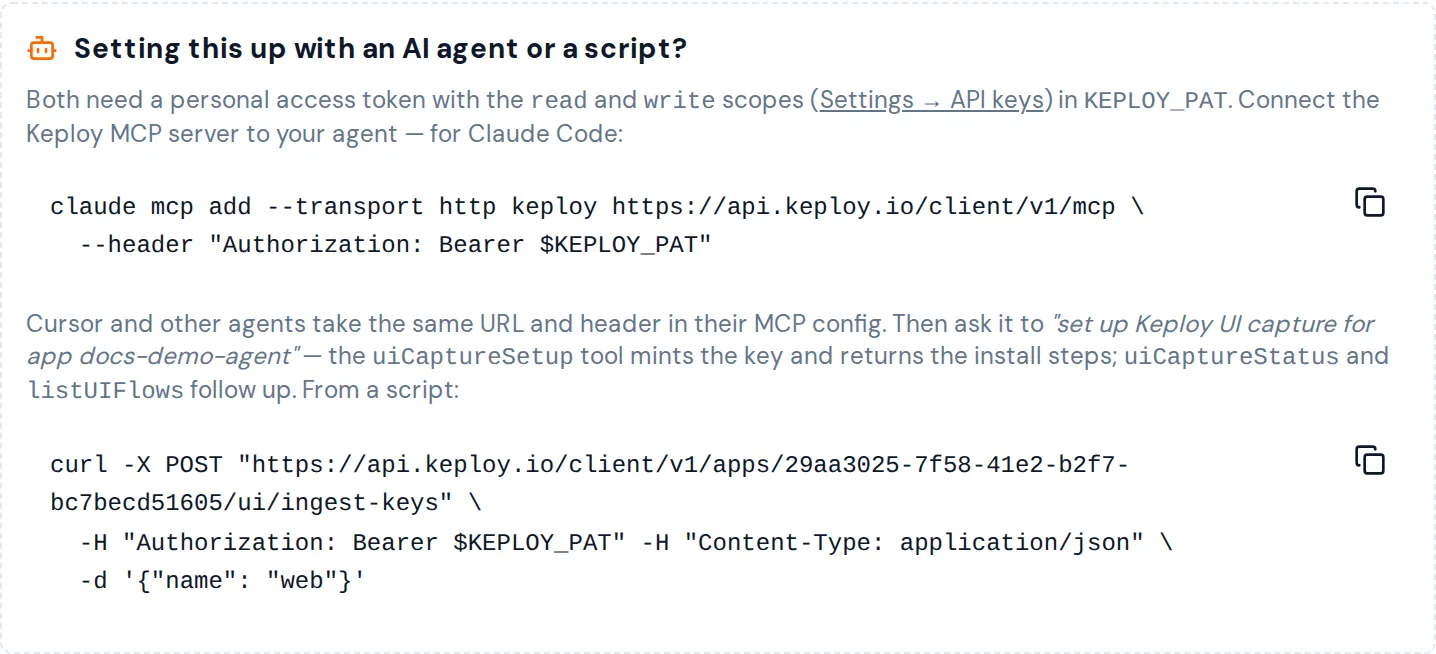
With a personal access token. In the dashboard, open Settings → API Keys → Generate new token, and give the token the Read and Write scopes. Put it in KEPLOY_PAT, then add the server with it. For Claude Code:
claude mcp add --transport http keploy https://api.keploy.io/client/v1/mcp \
  --header "Authorization: Bearer $KEPLOY_PAT"
This is the command the setup card under UI Testing → UI Flows shows, for the server your dashboard uses:
With the keploy CLI. If you have the keploy binary, sign in and let it configure your agent:
keploy login
keploy mcp-install --editor claude-code
--editor also takes cursor, windsurf, claude-desktop, codex, antigravity and github-copilot. CLI has every flag, and how an agent runs keploy login without waiting for you.
Other MCP clients take the same URL and header in their configuration file: see MCP client configuration.
2. Ask your agent
In your app's repository, ask the agent, for example:
"Use the Keploy MCP tools to set up UI capture for this frontend. Create a Keploy app named
storefront-webif I don't have one, mint an ingest key, add the capture SDK so it starts before the app's first request, and tell me when the first flows are ready."
3. What the agent does
The server runs in tool-search mode, so its UI capture tools are not in the agent's initial tool list. The server's own instructions name them, so the agent fetches their schemas in one get_tool_schema call and runs them with invoke_tool. Then:
listAppsfinds your app, orcreateAppcreates one. An app for UI capture needs only a name.uiCaptureSetupmints an ingest key for the app. The answer holds the key, which it shows only once, the ingest endpoint, the install commandnpm install @keploy/capture-sdk, and aninitsnippet with the endpoint and key in it.- The agent edits your frontend. It installs the SDK and calls
KeployCapture.initonce, in a module your app imports before anything else. The ingest key can only post recordings into this one app, so it is safe in your page's JavaScript. In the sample shop, it puts the key and endpoint in.env, whichsrc/keploy.tsreads. The snippet leavesprivacyModeat its default,"balanced", which masks everything visitors type; for a public site, ask the agent to set"strict", which masks all visible text too. uiCaptureStatussaysNO_SESSIONSuntil someone uses the app.
4. Use your app
Start your app and use it in a browser for a minute: open a few pages, search, click. uiCaptureStatus then says RECORDING.
A visit becomes flows 30 minutes after its last activity. To see flows sooner, close the app's tab and tell the agent: it ends the visit at once with POST /ui/v1/sessions/<session id>/complete and the ingest key, and the flows follow within a minute or two. The session id is the visit's sdkSessionId, which uiCaptureStatus lists under recentSessions; it is also what KeployCapture.getSessionId() returns, and the sample shop prints it in the browser console. The agent checks uiCaptureStatus no more than once a minute until it says FLOWS_READY.
5. Read the flows
The agent reads what your visit recorded:
listUIFlowslists the flows, usually one for each page a visit opened, named after what happened and where, such asFill on /products.getUIFlowreturns one flow's steps and the network calls they made.uiJourneysreturns the journey plan: the paths your sessions took through your pages, each with its share of sessions.
An agent onboards a web app shows each of these calls with the answer it returns.
Without MCP: the same steps with curl
An agent or a script without MCP makes the same calls on the REST API, with a personal access token:
API=https://api.keploy.io/client/v1
AUTH="Authorization: Bearer $KEPLOY_PAT"

# Create the app (skip this for an existing one)
curl -X POST "$API/apps" -H "$AUTH" -H "Content-Type: application/json" -d '{"name": "storefront-web"}'

# Mint an ingest key: the answer has the key, the endpoint and the init snippet
curl -X POST "$API/apps/<appId>/ui/ingest-keys" -H "$AUTH" -H "Content-Type: application/json" -d '{"name": "storefront web"}'

# Check capture, read the flows and the journey plan
curl "$API/apps/<appId>/ui/capture-status" -H "$AUTH"
curl "$API/apps/<appId>/ui/flows" -H "$AUTH"
curl "$API/apps/<appId>/ui/journeys" -H "$AUTH"
What the agent sees
Flows returned to an agent carry the shape of each visit, not your users' data: a step says that a value was typed, never what; headers, bodies and URL queries are left out; and a path segment that looks like an email address, a long number or a token comes back as REDACTED. What an agent sees lists the rules.
Clean up
To stop recording, ask the agent to revoke the ingest key: it lists the app's keys with listUIIngestKeys and revokes one with revokeUIIngestKey. Pages that still use the key stop recording within about 30 seconds.
Deleting an app needs a personal access token with the Admin scope, which only organization admins can give. An OAuth sign-in cannot delete apps. To disconnect an agent that signed in with OAuth, revoke it under Settings → Authorized apps.