Edit test cases and mocks
You can change the test cases and mocks that Keploy recorded from the Recordings page. For example, update an expected response after an intended change, fix a mock, or mark a field that changes on every run as noise.
Before you start
Every change to test data is made on a Keploy branch. It reaches main only after you commit it, get it reviewed and merge it.
- On a branch: select the branch in the header's branch picker before you make changes.
- On main: when you make a change, the Create a branch to continue dialog opens. Enter a branch name and continue; Keploy makes the change on the new branch.
You need write access to the app's test data. For editing, the cluster's k8s-proxy should be v3.7.94 or newer; the edit dialogs warn when it is older, because an older k8s-proxy can drop recorded fields that the dialog doesn't show.
Open a test case
- In the sidebar, open Recordings, with your app selected in the header.
- In the left panel, expand a release and a test set, then click a test case.
- Click the ⋯ (Test case actions) menu next to the test case's name. It has Edit, Add mock and Delete.
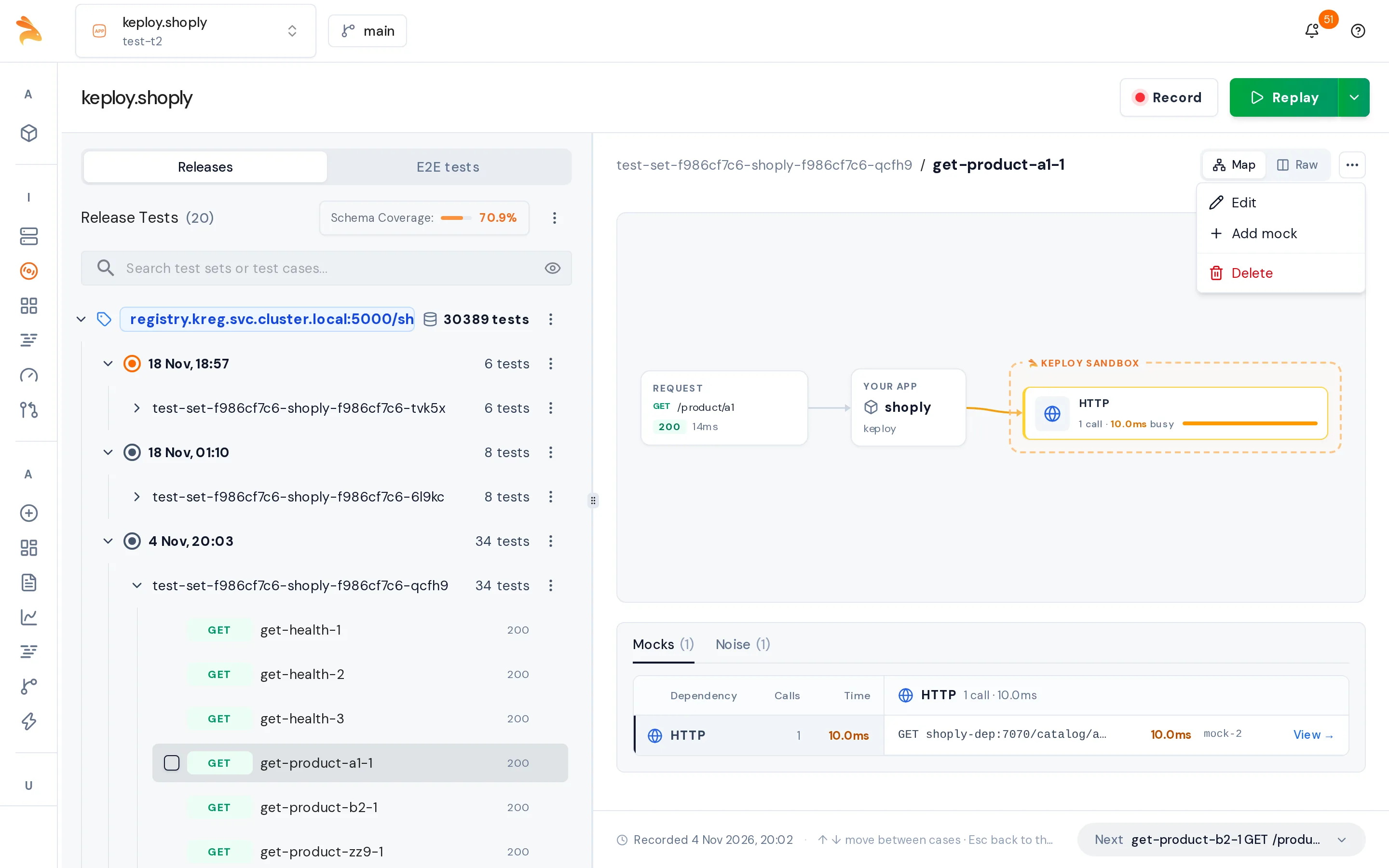
Edit a test case
- Open the test case and choose ⋯ → Edit.
- In the Edit test case dialog, change what you need: Method, URL, Request headers, Request body, Status, Response headers or Response body. Headers are a JSON object, such as
{"Content-Type":"application/json"}. The name can't be changed here. For a gRPC test case, the dialog shows the gRPC path, headers, decoded bodies, status and message instead. - Click Save.
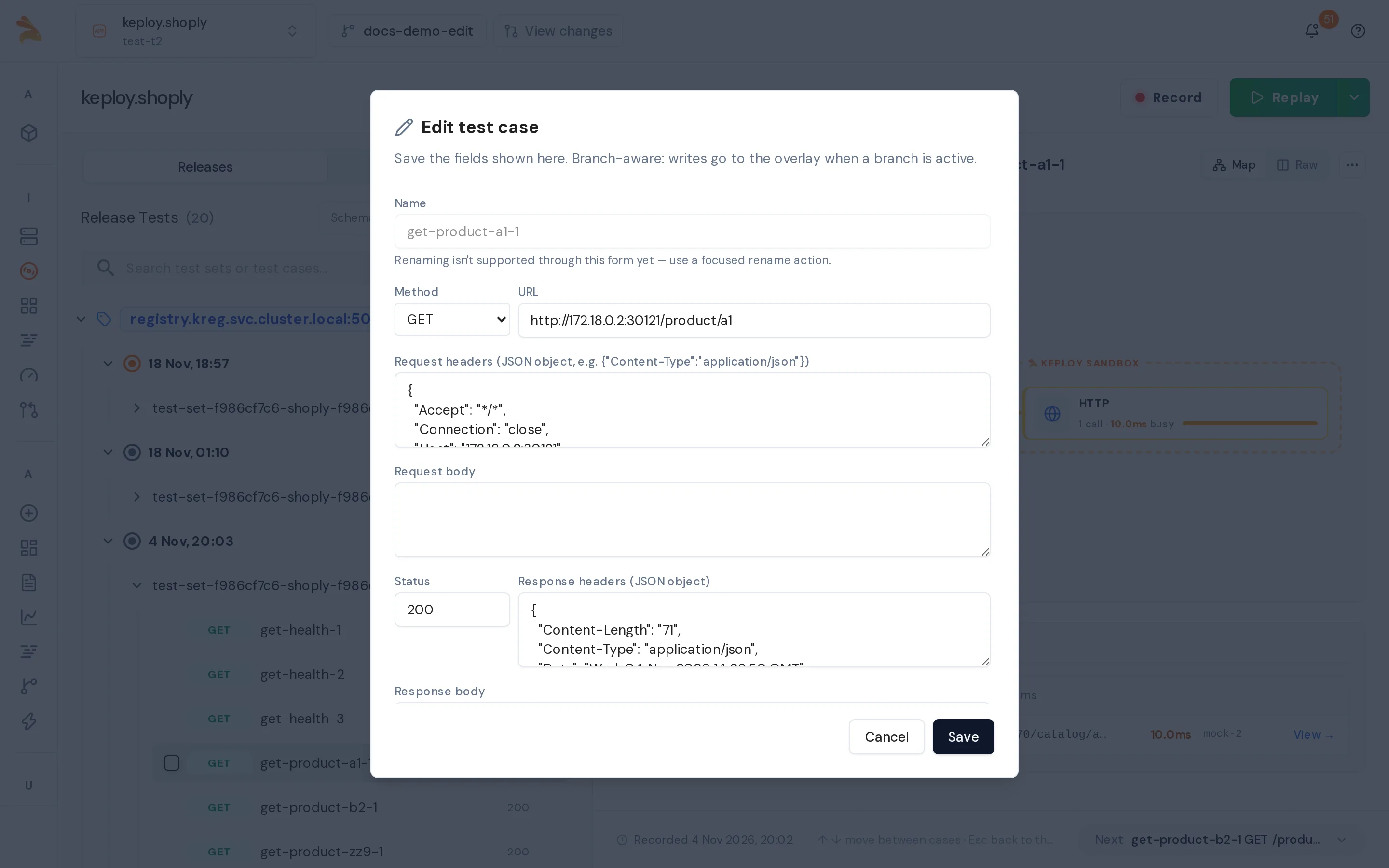
The fields that the dialog doesn't show, such as the test case's noise, keep their recorded values.
To add a test case by hand, open the ⋯ menu of a test set in the left panel and choose Add test case. Fill in the Create test case dialog and click Create.
Change mocks
The Mocks tab of a test case lists the outgoing calls that its replay is answered from. Click View → on a mock to open it. The mock view has Link (or Unlink), Edit and Delete.
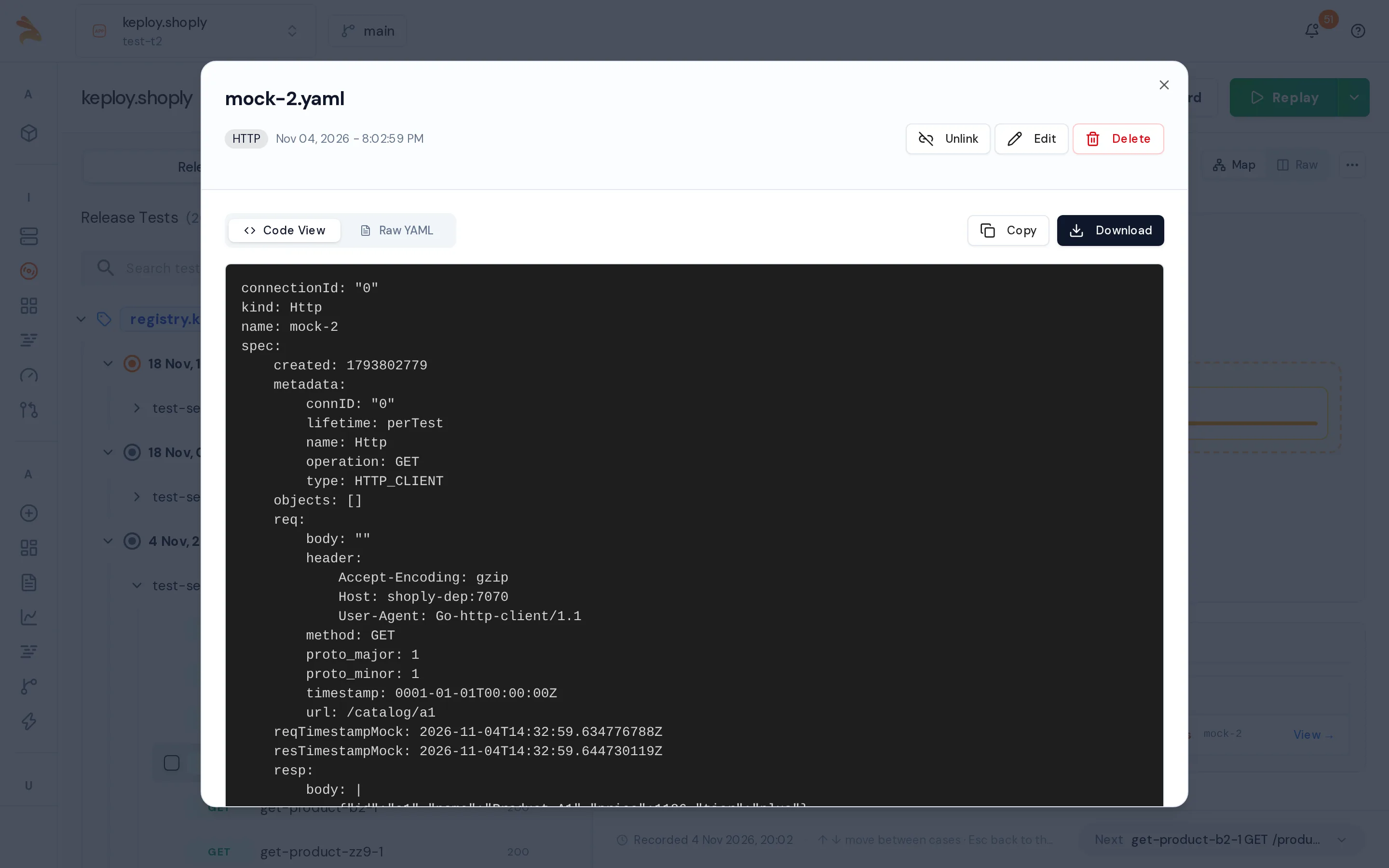
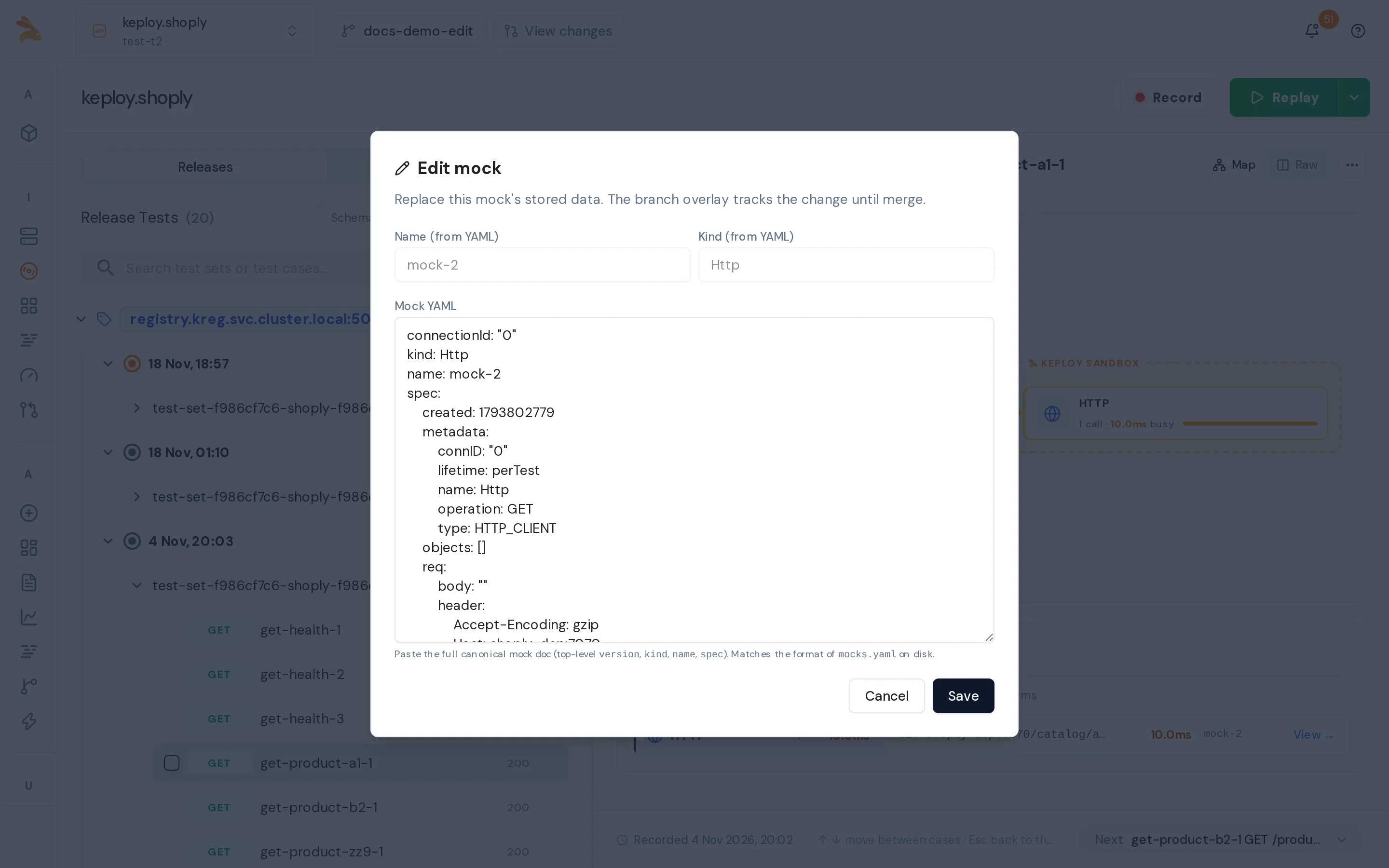
- Edit a mock: click Edit. The Edit mock dialog shows the mock's full YAML, as stored in
mocks.yaml. Change it and click Save. - Add a mock: open the test case and choose ⋯ → Add mock. Paste the full mock YAML, with its top-level
version,kind,nameandspec, and click Create. Keploy links the new mock to the test case. - Delete a mock: click Delete and confirm.
- Link or unlink a mock: click Link to make the test case use this mock, or Unlink to stop it from using the mock. The mock itself stays in the test set.
Mark a field as noise
Noise is a field whose value changes on every run, such as a timestamp, a request ID or a token. Keploy ignores it when it compares the response with the recording.
- Open the test case and select the Noise tab. It lists the test case's noise with each field's recorded value.
- Click Add noise and select one or more fields under Response fields.
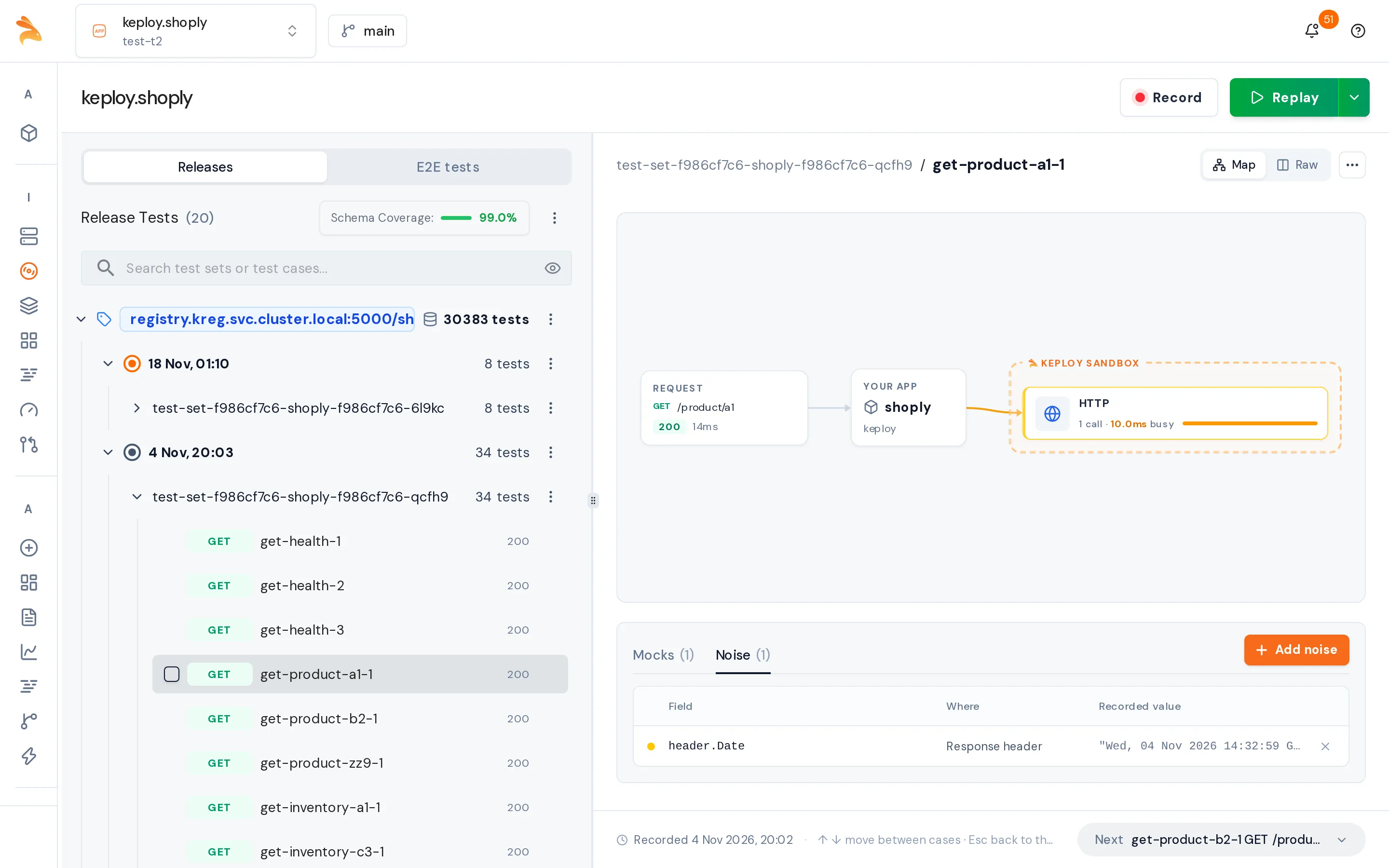
To remove a field from noise, click its remove icon (Remove from noise) on the Noise tab.
Noise on a test case applies to every replay. To ignore a field in a single run, or in a recording's auto-replay rounds, see Ignore fields in a run and Noise in auto-replay.
Create or delete test sets
- Create a test set: open the Test set actions menu at the top of the left panel and choose Create test set. Enter a name and click Create. The new test set is empty.
- Delete a test set or a test case: choose Delete test set in a test set's ⋯ menu, or Delete in a test case's ⋯ menu.
To delete the test cases that failed in a replay, it is often quicker to do it from the Test Report. See Delete a test case.
Apply your changes to main
-
Replay the branch to check your changes before you merge them. A replay from the dashboard runs main, so use the CLI:
keploy cloud replay --app "<namespace>.<deployment>" --cluster "<cluster>" --branch-name "<branch>" -
Commit the changes, request a review, and merge the branch. See Commit, review and merge.
Related
- Fix failing tests: find out why a test failed, and work with branches.
- Mocks and stubs: what a mock is.
- Configuration file: noise settings for the local CLI.