Set up
To use Keploy on Kubernetes, install the Keploy proxy in your cluster and connect the cluster to Keploy. To replay tests on your machine or in CI, also install the Keploy CLI.
If your cluster already shows Connected on the Clusters page, go to Install the CLI.
Before you start
kubectlandhelmaccess to the cluster, with rights to create a namespace and install a Helm chart.- Permission to connect clusters in Keploy (
cluster:mint). If Connect New Cluster is disabled, ask your admin. - Linux nodes with kernel 5.10 or later.
Choose a capture mode
The capture mode is set when you connect the cluster, and it applies to every recording on that cluster.
| Sidecar (default) | DaemonSet | |
|---|---|---|
| How it captures | Keploy injects an agent container into the pods it records. | A Keploy agent on each node captures traffic with eBPF. No sidecar. |
| Pods restart when recording starts | Yes | Yes, once, so that they come back up with capture attached |
| Namespace requirement | None | The keploy namespace must allow privileged pods |
For how DaemonSet mode works, see DaemonSet & Auto-Replay.
Connect your cluster
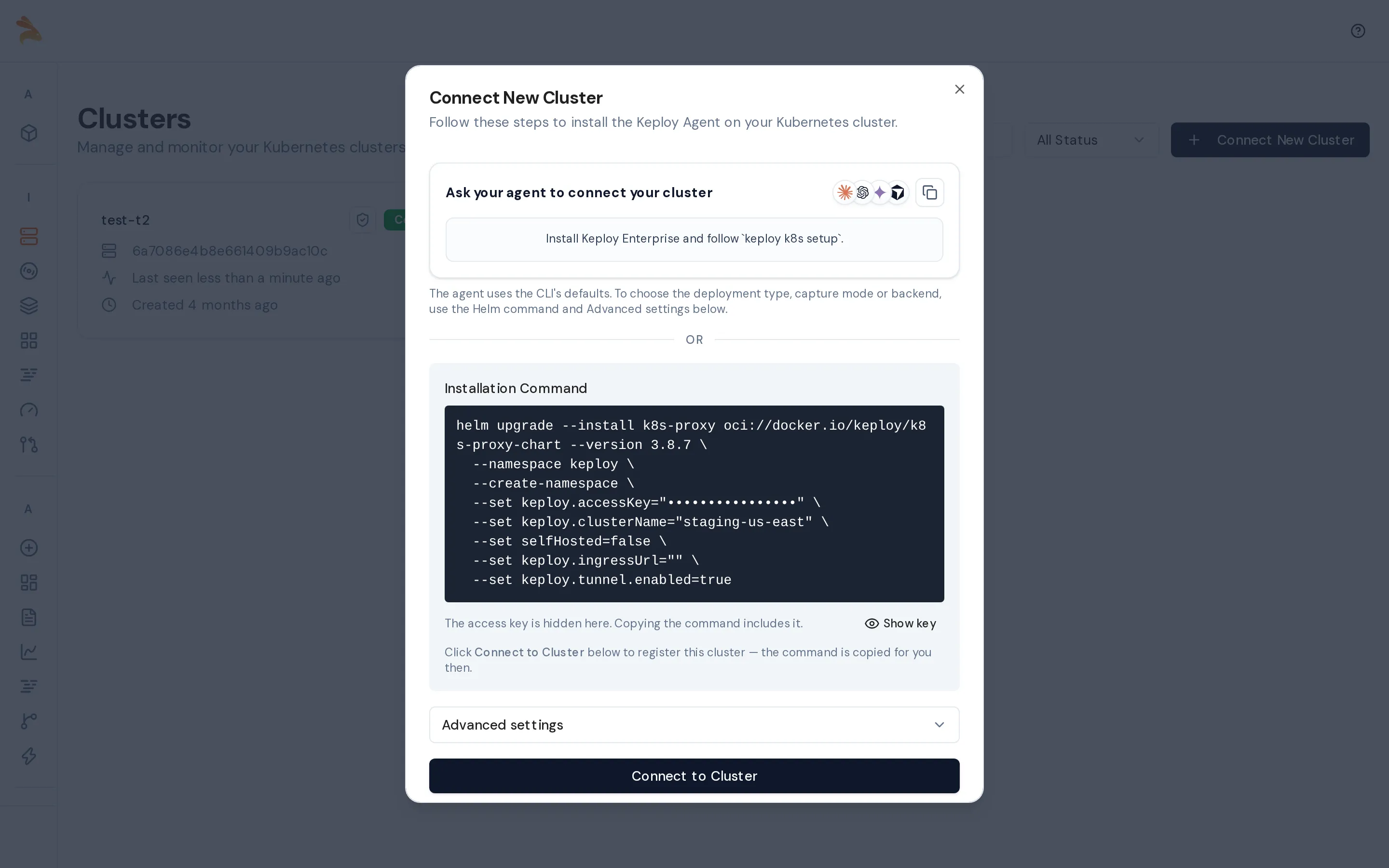
- In the sidebar, open Clusters and click Connect New Cluster. The dialog shows a ready-to-use Installation Command with a generated cluster name and default settings.
-
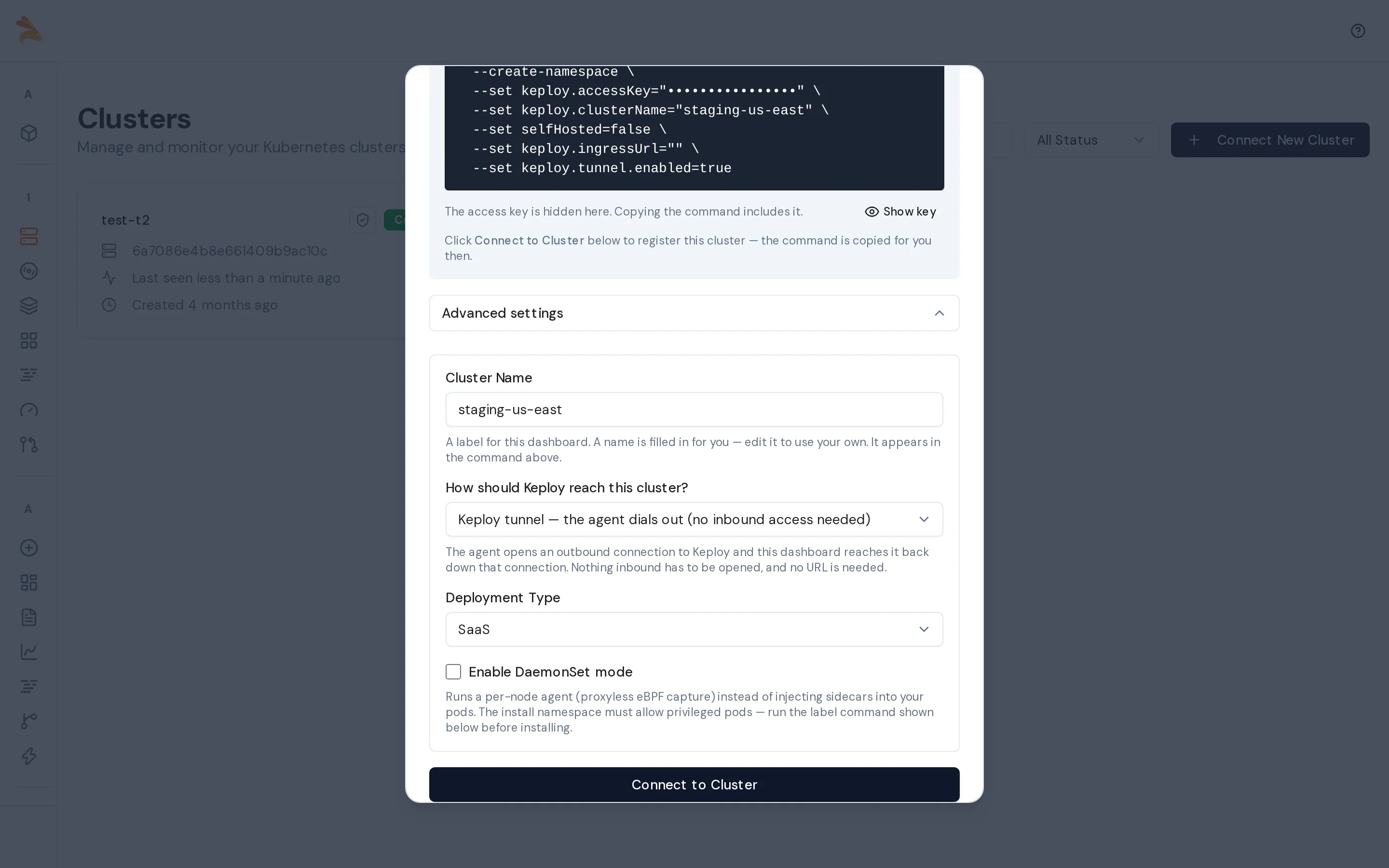
To change the defaults, open Advanced settings:
- Cluster Name: a name you'll recognize, for example
staging-us-east. The installation command updates to match. - How should Keploy reach this cluster?: Keploy tunnel needs no inbound access. Ingress URL exposes the proxy at a URL that you enter. Self-hosted clusters always use an ingress URL.
- Deployment Type: SaaS stores your test data in Keploy Cloud. Self-hosted keeps it in your cluster, and you also choose a Metadata Backend (MongoDB or MySQL).
- Enable DaemonSet mode: select it to use DaemonSet mode.
- Cluster Name: a name you'll recognize, for example
-
Click Connect to Cluster. Keploy registers the cluster, copies the installation command to your clipboard and opens the cluster's page.
-
For DaemonSet mode only, allow privileged pods in the
keploynamespace before you install:kubectl create namespace keploy --dry-run=client -o yaml | kubectl apply -f -
kubectl label namespace keploy pod-security.kubernetes.io/enforce=privileged --overwrite -
Run the installation command. It contains your cluster's access key and looks like this:
helm upgrade --install k8s-proxy oci://docker.io/keploy/k8s-proxy-chart --version <version> \
  --namespace keploy --create-namespace \
  --set keploy.accessKey=<access-key> \
  --set keploy.clusterName=<cluster-name> \
  ...
Instead of running the Helm command yourself, copy the prompt under Ask your agent to connect your cluster into your AI coding assistant. It installs Keploy and runs keploy k8s setup with the CLI's default settings. Use the Helm command when you need to choose the deployment type, capture mode or metadata backend.
Verify the installation
kubectl get pods -n keploy
Wait until every pod is Running. In DaemonSet mode, there is also one k8s-proxy-daemonset-* pod per node.
On the Clusters page, the cluster now shows Connected. Open it to see your workloads on the Deployments tab. You can now record traffic.
Install the CLI
The CLI replays tests on your machine, replays Keploy branches, and runs Keploy in CI.
-
Install the CLI:
source /dev/stdin <<<"$(curl -fsSL https://keploy.io/install.sh || echo 'echo Keploy installer download failed >&2; return 1')" -
Sign in:
- On your machine: run
keploy loginand approve the code in your browser. - In CI: create a key under Settings → API Keys and set it as
KEPLOY_API_KEY.
- On your machine: run
-
Verify the installation:
keploy --version
Replaying on your machine also requires Docker. For the replay command, see Replay on your machine. For Windows and other sign-in options, see Install Keploy and Sign in.
Troubleshoot the connection
| Problem | What to do |
|---|---|
| The cluster stays Disconnected | Run kubectl get pods -n keploy and check the logs of the k8s-proxy pod. With an ingress URL, check that it's reachable. |
| DaemonSet pods are rejected by Pod Security | Run the namespace label command from step 4, then reinstall. |
| Connect New Cluster is disabled | You need the cluster:mint permission. Ask your admin. |
Related
- Kubernetes Setup: a full walkthrough on a local kind cluster, with SSH port forwarding and ingress with TLS.
- K8s Record Replay: set up a sample app and record it end to end.
- Cloud Replay Command Reference: self-hosted targeting with
--k8s-proxy-url, and every other flag.