Run a manual replay
A manual replay runs your recorded test cases whenever you choose, and Keploy answers every outgoing call from the recorded mocks. Each run produces a Test Report.
Choose how to replay
There are three ways to start a manual replay:
| Method | Where the replay runs | Use it to |
|---|---|---|
| The dashboard | In your cluster | Replay on demand, with nothing to install. |
keploy cloud replay | On your machine, in Docker | Test a build before you push it, or debug a failure locally. |
keploy cloud replay --trigger | In your cluster | Replay from a terminal or a CI pipeline without running Docker on that machine. |
Replay from the dashboard
- In the sidebar, open Clusters, click your cluster, and stay on the Deployments tab.
- Click Replay on the deployment.
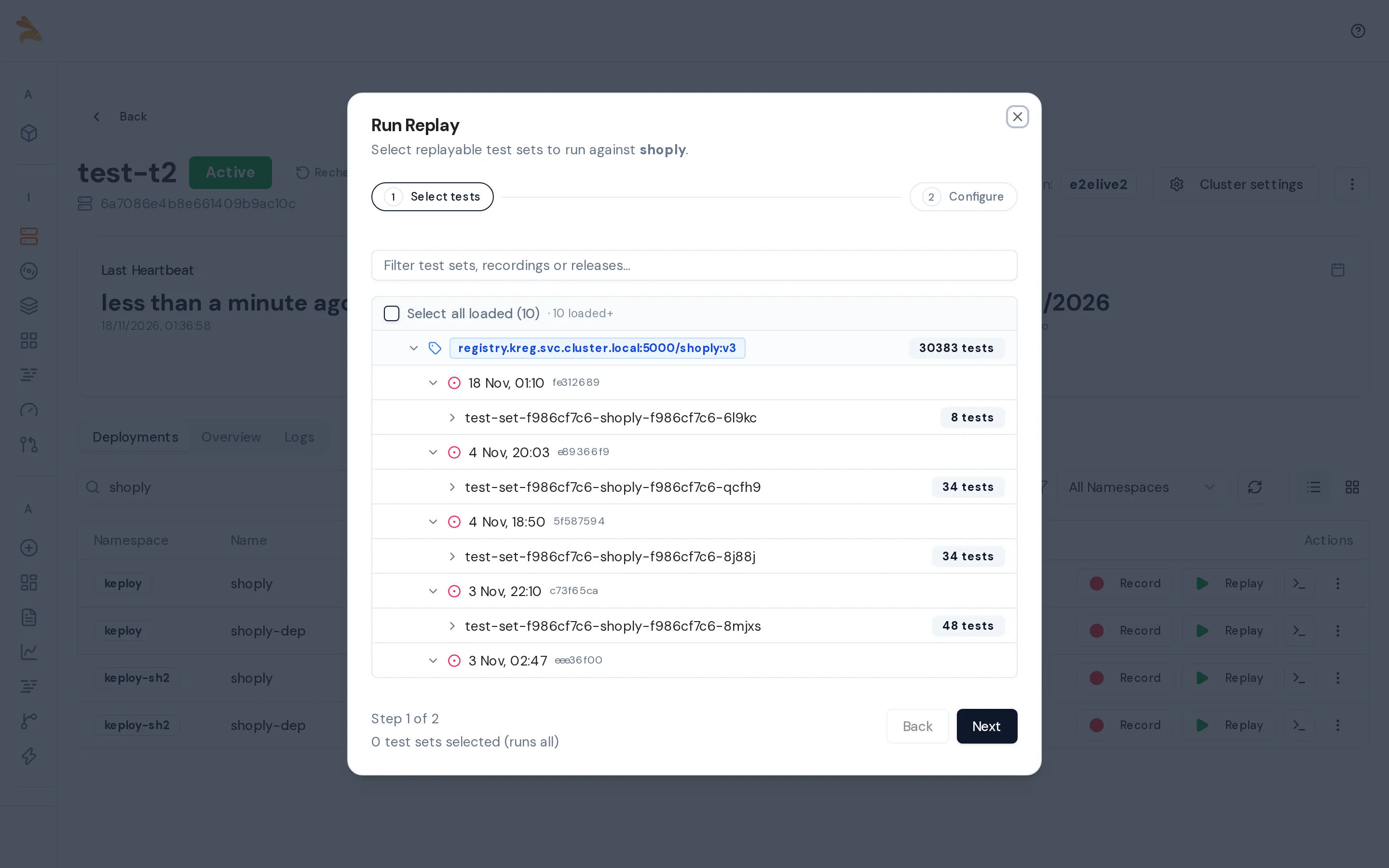
- Select tests: select test sets, or open a test set and select individual test cases. If you select nothing, every recorded test set runs. Click Next.
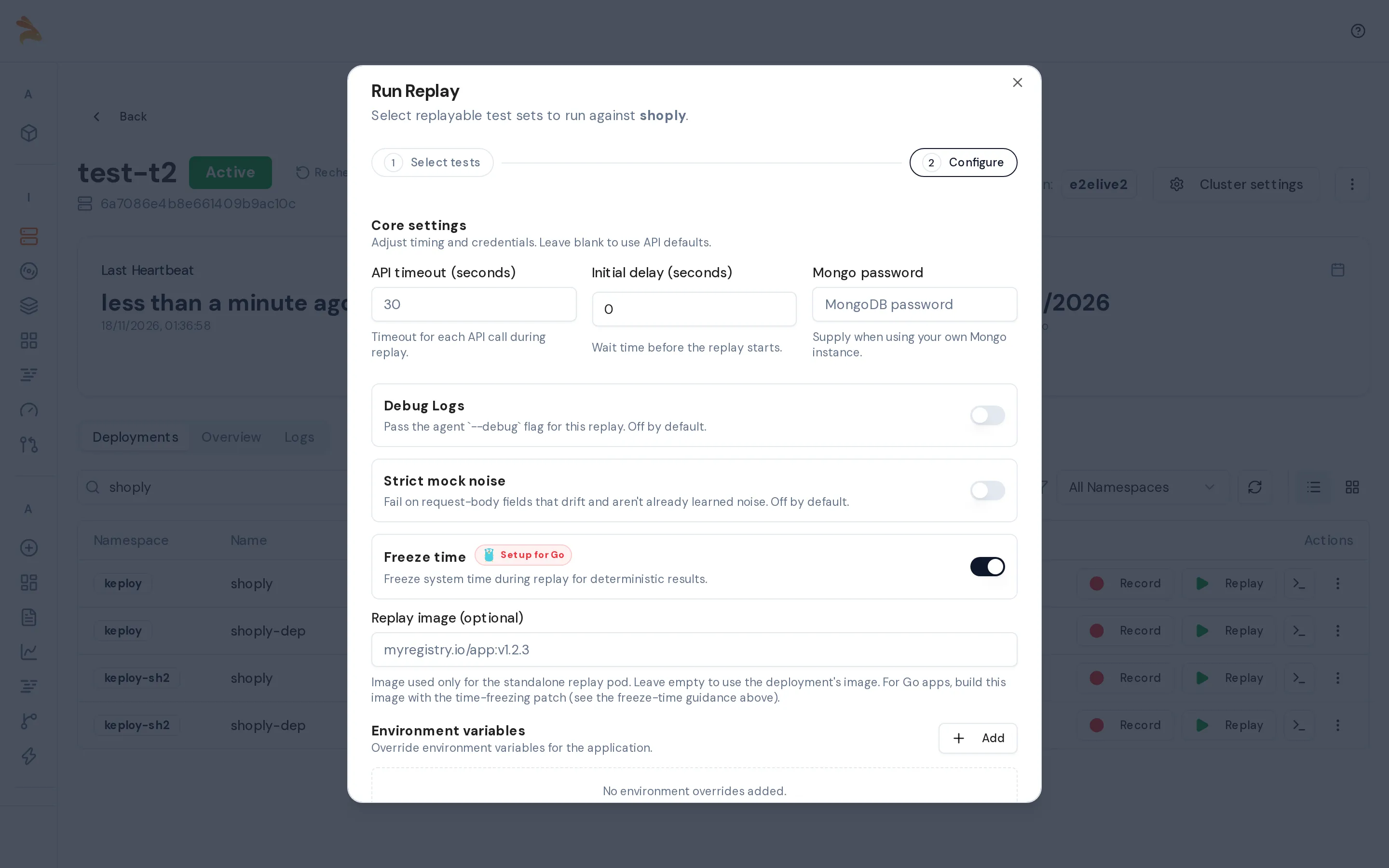
- Configure: keep the defaults or change the settings. Click Start Replay.
The deployment row now shows Replaying with the progress. Click it to see live counts, open the replay page with View details, or cancel the run with Stop Replay.
To replay a selection from the Recordings page, select the test cases and choose Replay → Replay in cluster.
Test cases that auto-replay already marked as failed aren't listed, and the replay skips them. A replay from the dashboard always runs against main.
Replay settings
| Setting | Default | What it does |
|---|---|---|
| Initial delay (seconds) | 10 | How long Keploy waits for your app to start in the replay pod before sending tests. If the app is still not accepting connections, Keploy waits longer. |
| API timeout (seconds) | 10 | Timeout for each test request. An empty field means 10 seconds. |
| Strict mock noise | Off | Fails an outgoing call when a value in its request body changed since recording. See Strict mock noise. |
| Freeze time | On | Replays with the clock set to the recording time. See Time Freezing. |
| Replay image (optional) | The deployment's image | Container image for the replay pod. Use it to test a new build against the recorded traffic. |
| Environment variables | None | Extra environment variables for your app during replay. |
| Advanced options | None | Response fields to ignore in this run. See Ignore fields in a run. |
| Debug Logs | Off | Turns on debug logging in the replay pod. |
The dialog fills in the settings from your previous replay of the same deployment. Check them before you start a new run.
Ignore fields in a run
Some response fields change on every run, such as a timestamp, a request ID or a token. Keploy calls them noise and ignores them when it compares responses. To ignore fields in one run, enter them under Advanced options:
| Field | Example |
|---|---|
| Global noise: body fields | data.timestamp |
| Global noise: headers | Date |
| Per test-set noise: body | test-set-1: data.sessionId |
| Per test-set noise: headers | test-set-1: Date |
Separate multiple entries with commas or new lines. These fields apply to this run only. To ignore a field in every run, add it to the test case instead; see Edit test cases and mocks.
Strict mock noise
Strict mock noise decides how closely an outgoing call's request body must match a recorded mock. It is off by default. In the API and in older configurations, it is called schemaNoiseStrict, which is the same setting as mockNoiseStrict.
- Off: an outgoing call matches a mock by the shape of its JSON request body. Values are compared only on mocks that already have learned noise.
- On: every changed value in the request body must be known noise, or Keploy rejects the mock. If no mock is left, the call isn't served and the test fails.
Use strict mode when a changed request value would be a real bug, such as a wrong amount sent to a payment service. Before you turn it on, run a few auto-replay rounds with mock noise detection on, so that Keploy has already learned the fields that are expected to change. Strict mock noise has no effect on auto-replay.
Replay on your machine
keploy cloud replay downloads the recorded test cases and mocks, and runs your app and the tests in Docker on your machine. You need the Keploy CLI and Docker.
On the deployment row in the dashboard, click the terminal icon (Cloud replay command) to copy a ready-made command:
keploy cloud replay --app "<namespace>.<deployment>" --cluster "<cluster>"
- By default, the replay runs the image of the recorded deployment. To test another build, add
--image <image>:<tag>. - To replay only some test sets, add
--test-sets. - To replay a Keploy branch, add
--branch-name <branch>.
When the run ends, the CLI prints a link to its Test Report.
Replay in the cluster from the CLI
Add --trigger to start the replay in your cluster instead of on your machine. It runs as a replay from the dashboard does, so the machine that runs the command doesn't need Docker:
keploy cloud replay --app "<namespace>.<deployment>" --cluster "<cluster>" --trigger
--triggerreplays all recorded test sets, so it can't be combined with--test-sets.--imageworks as it does on your machine. The cluster must be able to pull the image.--branch-namereplays a Keploy branch in the cluster. This needs a recent k8s-proxy; an older one refuses the run and says so.- The CLI prints the progress while the replay runs. Find the Test Report under Reports in the dashboard.
In a pull-request pipeline, both CLI methods also manage a Keploy branch for the pull request. See Replay in CI.
For every flag, see the Cloud Replay Command Reference.
Open the Test Report
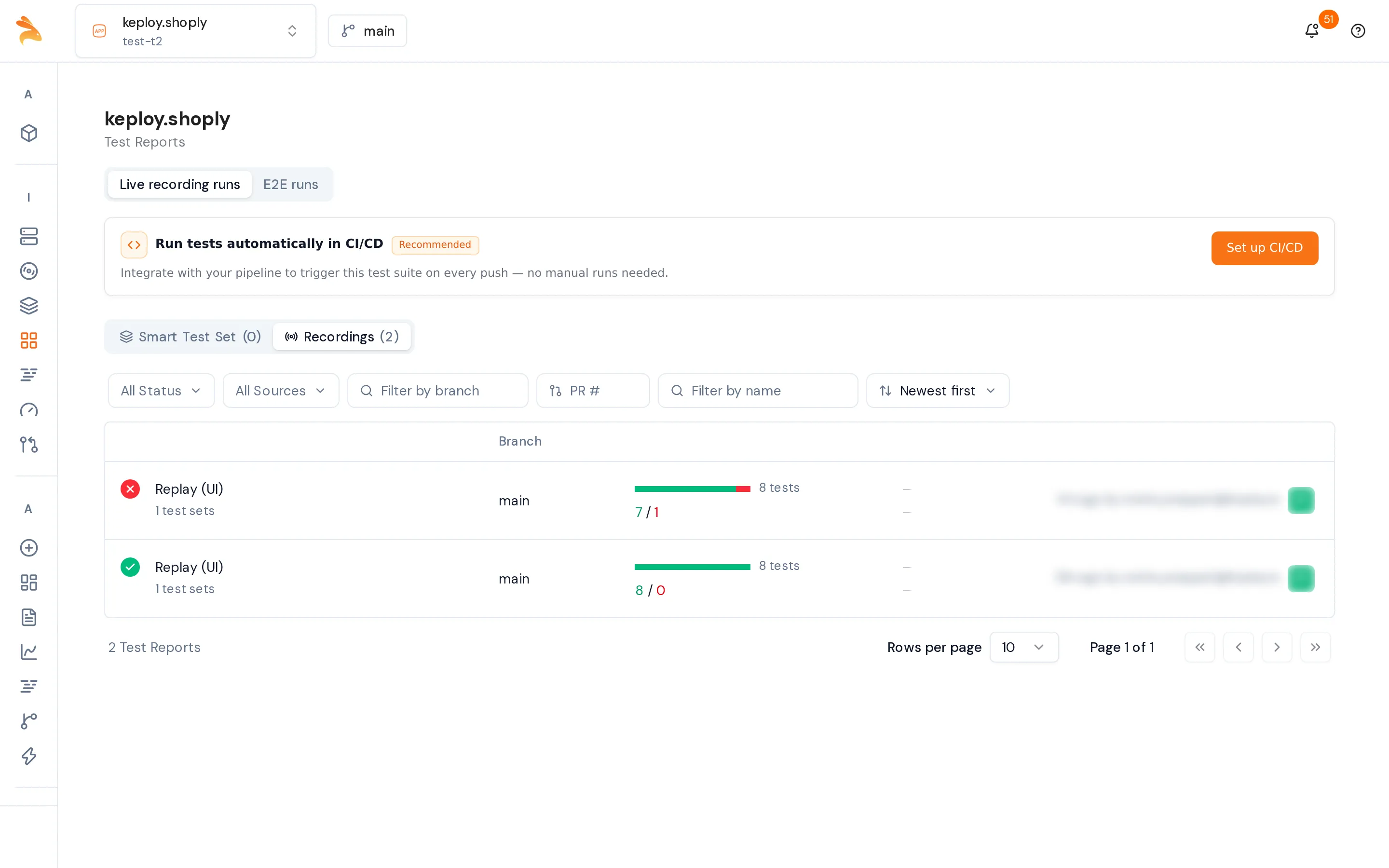
- In the sidebar, open Reports. On Live recording runs, the Recordings tab lists your manual replays.
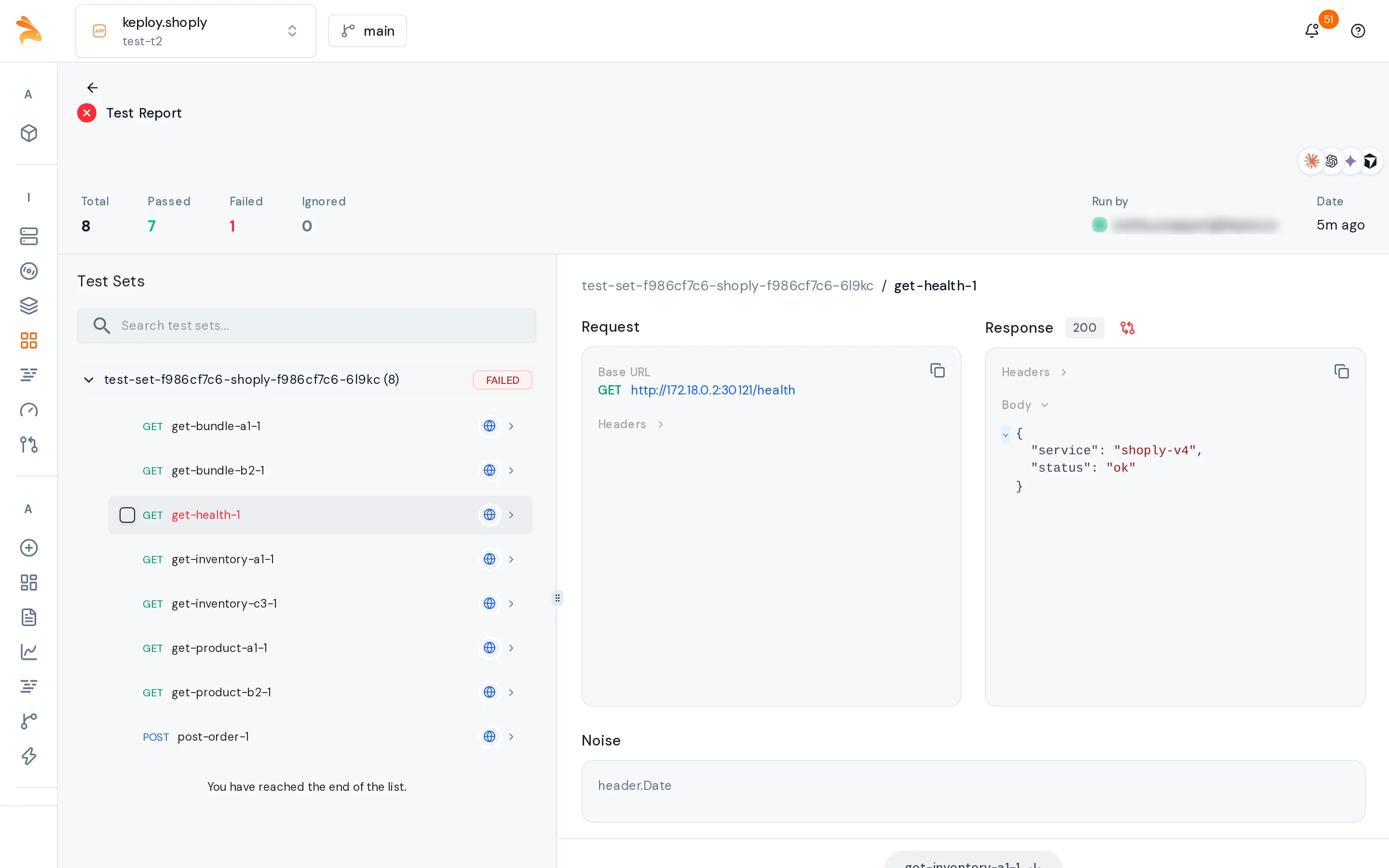
- Click a run. The Test Report page shows Total, Passed, Failed, Ignored, Duration and Run by. Click a test to see its request, response and noise.
If any test failed, see Fix failing tests.
Related
- Auto-replay: automatic rounds while a recording runs.
- Replay in CI: replay every pull request, with a Keploy branch for the tests it changes on purpose.
- Configuration file: noise settings for the local CLI.
- Developer + LLM Workflow with Keploy Proxy: let an AI coding assistant diagnose and fix failing replays.